Open topic with navigation
Setting Up Allocations
You can set up allocations on the Maintain Allocations screen. You will use the Allocation tab to maintain the identification information for each allocation, and the Allocation Details tab to maintain the percentage breakdowns that define how each allocation distributes expenditures or revenue.
Access General Ledger
|
1.
|
Click SETUP on the Main Menu screen and then click ALLOCATIONS on the Maintain Ledger Settings screen that appears. The Browse Allocations screen opens with all active allocations displayed in a table. |
Enter Allocation Info
|
2.
|
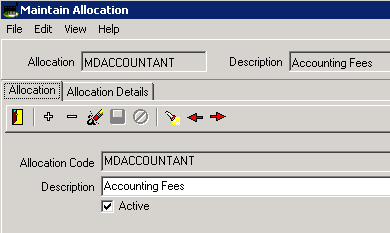
Click  on the toolbar. The Maintain Allocation screen appears with the Allocation tab selected and ready for entry. on the toolbar. The Maintain Allocation screen appears with the Allocation tab selected and ready for entry. |
|
3.
|
Enter the allocation code and descriptionused to identify the allocation. |
|
4.
|
Check the active checkbox to make the allocation available for you to assign to a JE. |
Hint: If a record is active, it is available for you to work with elsewhere in the program. Uncheck this checkbox for records you no longer wish to use.
|
5.
|
Click  to save and apply your changes. to save and apply your changes. |
Define Allocation Distributions
|
6.
|
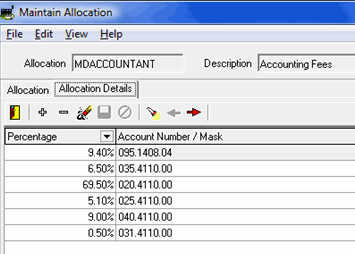
Select the Allocation Details tab and click . The Add Allocations Wizard is initiated. |
|
7.
|
Enter the percent of a transaction governed by this allocation detail in the percentage field. |
|
8.
|
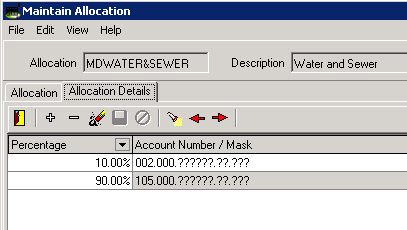
Determine how this allocation detail assigns its percentage share of a transaction by selecting either the specific account number or build an account mask option. |
- If you choose Specific Account Number, this detail record’s percentage will always go to one specific account.
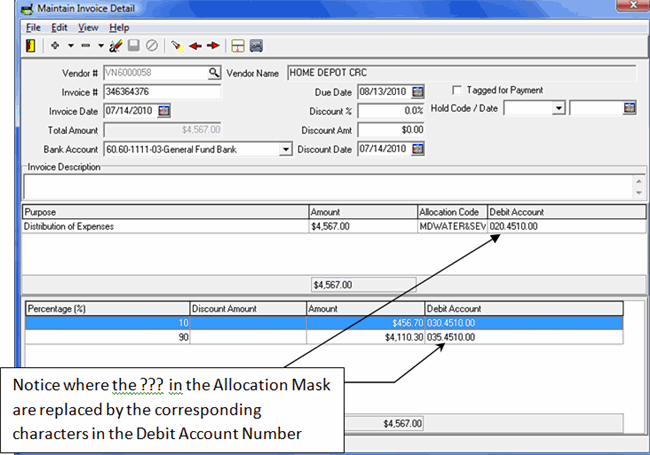
- If you choose Build an Account Mask, you will create a mask that defines only part of an account number. This will allow you more flexibility in applying this allocation to JEs.
|
9.
|
Click START to continue. |
If you chose the specific account number option on Step 1, choose the account number that will always receive this detail record’s percentage of the allocation and click NEXT.
OR
If you chose the build an account mask option on Step 1, click  to search for and select the appropriate fund, site (project), line item, sub-line item, and team (development), and then click NEXT.
|
10.
|
Review and confirm the information you have set up and click FINISH to set up the allocation. The Allocation Details tab appears again with the new information displayed. |
Hint: The Display Account/Mask field shows you either the specific account or the final account mask. Use it to verify that the allocation detail is correct.
Copyright © Tenmast Software 2010
 For example: