Open topic with navigation
User Security
The Form Security area of the Property Security program allows you, the administrator, to assign privileges, or specific tasks, to a user, or to view currently assigned privileges/tasks.
Setting up a user’s access to the Property Security program can be accomplished in two ways: 1.) By setting up the access rights per screen/one screen at a time, or 2.) By setting up the access rights for the whole program at once.
Note: User security is usually completed for you by Tenmast before installation of the Property Security program.
Note: "Screens" and "tabs" in Property Security are referred to as "forms" when working in the Form Security area of the program.
Setting Up User Security Per Screen/Tab
Access Form Security
|
1.
|
Click  on the toolbar (located on the right side of the screen). The Security by Form screen opens with all available user records displayed in the Groups/Users list at the top of the screen. on the toolbar (located on the right side of the screen). The Security by Form screen opens with all available user records displayed in the Groups/Users list at the top of the screen. |
- This is your agency-defined list of WinTen² and Property Security users, which you maintain in the Master Setup program.
Select User to Work With
|
2.
|
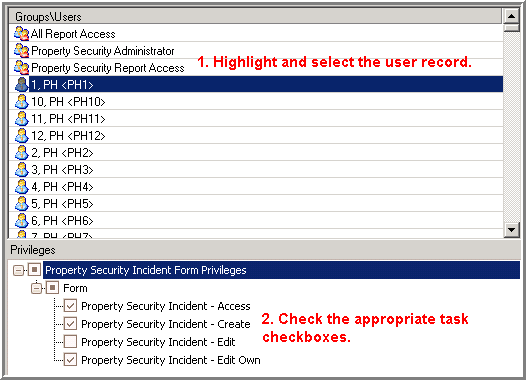
In the Groups/Users list, highlight and select the user you want to work with. |
Assign Screen/Tab Privileges/Tasks
All available privileges, or "tasks," for the specific screen/tab (or "form") display in the Privileges list at the bottom of the screen.
|
3.
|
In the Privileges list, check the checkbox(es) of the specific tasks you want the user to be able to perform on the selected screen/tab. For example, if you want the user to be able to access, create a new record, and edit records, check those checkboxes. |
Save
|
4.
|
Click  to save and apply your changes. to save and apply your changes. |
Hint: To exit out of an individual screen or tab, you can click  on the toolbar, or
  next to the screen/tab name. You can also use the Escape (ESC) key on your keyboard. (If you haven't saved any changes before exiting, a message will appear asking if you'd like to save before closing.)
Setting Up User Security For Entire Program
Access Form Security
|
5.
|
Click on the toolbar (located on the right side of the screen). The Security by Form screen opens with all available user records displayed in the Groups/Users list at the top of the screen. |
- This is your agency-defined list of WinTen² and Property Security users, which you maintain in the Master Setup program.
Select User to Work With
|
6.
|
In the Groups/Users list, highlight and double-click on the user you want to work with. The User screen appears with the User Details tab selected. |
Enter or Edit User Details (if necessary)
|
7.
|
Enter or edit, as necessary, any information about the user in the available fields. |
Note: To "disable" a user and prevent them from using the Property Security program entirely, check the User Disabled checkbox.
|
8.
|
Click to save and apply your changes. |
Assign Privilege Group(s)
|
9.
|
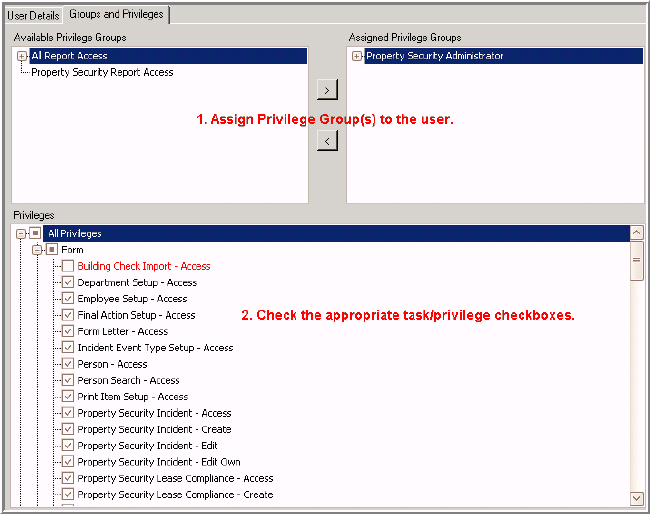
Select the Groups and Privileges tab. All available privilege groups are displayed in the Available Privilege Groups list at the top of the tab. |
|
10.
|
In the Available Privilege Groups list, highlight and select the privilege group to which you want to assign the user and click  . The group now displays in the Assigned Privilege Groups list and the user now belongs to the group. . The group now displays in the Assigned Privilege Groups list and the user now belongs to the group. |
|
11.
|
Repeat until all necessary privilege groups are assigned to the user. |
- To remove a user from an assigned privilege group, highlight and select the group in the Assigned Privilege Groups list and click
 .
.
Assign Screen/Tab Privileges/Tasks
All available privileges, or "tasks," for the specific screen/tab (or "form") display in the Privileges list at the bottom of the screen.
|
12.
|
In the Privileges list, check the checkbox(es) of the specific tasks you want the user to be able to perform for each screen/tab (or "form") in the program. For example, if you want the user to be able to access, create a new record, and edit records on the Security Incident form, check those checkboxes. |
Note: Denied privileges appear in red text. Removing a privilege will deny the privilege for the user, even if an assigned group permits it.
|
13.
|
Click to save and apply your changes. |
Note: To quickly search for another user record to work with (instead of returning to the Security by Form screen to select it), click  on the toolbar. The User Search screen appears where you can search for and select the user record.
Hint: To exit out of an individual screen or tab, you can click on the toolbar, or next to the screen/tab name. You can also use the Escape (ESC) key on your keyboard. (If you haven't saved any changes before exiting, a message will appear asking if you'd like to save before closing.)
Copyright © Tenmast Software 2010
 Example: